
Quick Answer #
To customize the Add to Registry button, go to your Gift Registry Guru Dashboard > Add to Registry Button Appearance > Configure. From there you can choose the button layout (text, icon, or both, with or without a background), pick a registry icon (heart, star, or bookmark), set a button animation, adjust the Regular, Hover, and Active styles (colors, borders, fonts), choose where it appears on the product page (image, title, or Add to Cart area), and apply Custom CSS for advanced styling like gradients.
Customizing the Add to Registry button helps it blend seamlessly with your store’s branding and gives shoppers a clear, on-brand way to save items to their gift registry. This guide covers how to personalize the button’s style, interaction states (hover, active), and placement directly from your Gift Registry Guru dashboard — plus how to apply custom CSS for advanced design changes.
Open the Button Appearance Settings #
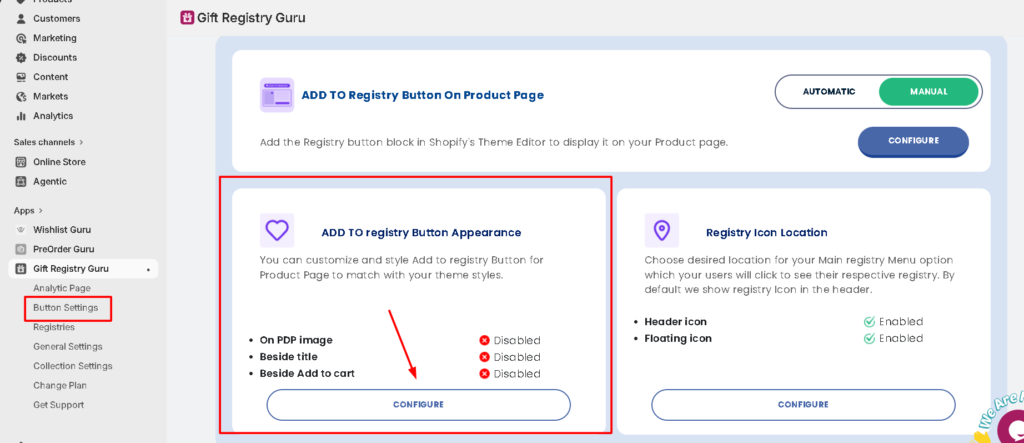
- Go to your Gift Registry Guru Dashboard.
- Scroll down to “Add to Registry Button Appearance.” or you can click on the direct Button setting in the left navigation
- Click the Configure button to open the styling panel.
Choose Your Add to Registry Button Layout #
Once the Configure panel is open, the Add to Registry Button section lets you pick how the button or icon should appear on your product page. Select the layout that best matches your store’s design from the following options:
- Text + Background, No Icon – a solid button displaying only the text “Add to Registry”
- Only Text, No Background, No Icon – plain text link style with no button background or icon
- Icon + Text + Background – a solid button with both an icon and the “Add to Registry” text (default)
- Icon + Text, No Background – an icon and text combination without a button background, for a minimal look
- Icon + Background, No Text – a compact icon-only button, useful for tight layouts or mobile-first designs
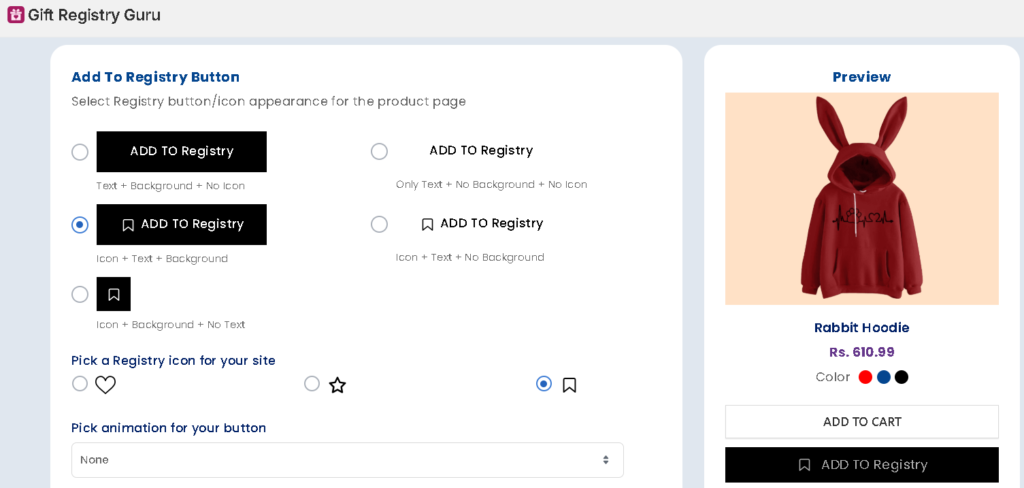
👉 The Icon + Text + Background option is selected by default and works well for most themes, as it gives shoppers a clearly visible call-to-action.
Pick a Registry Icon #
If your chosen layout includes an icon, you can select which icon represents the Add to Registry action on your storefront. Available icon options include:
- Heart
- Star
- Bookmark (default)
👉 Choose an icon that feels intuitive for a gift registry — for example, a bookmark or heart icon is commonly associated with “saving” an item for later.
Pick a Button Animation #
To draw a little extra attention to the Add to Registry button, you can apply an animation effect that plays when the button is shown or interacted with. By default, this is set to None, but you can select an animation style from the dropdown menu to add subtle motion to the button.
👉 Animations can help highlight the Add to Registry option, but if you prefer a clean, distraction-free product page, leaving this set to None works well too.
Style Your Add to Registry Button #
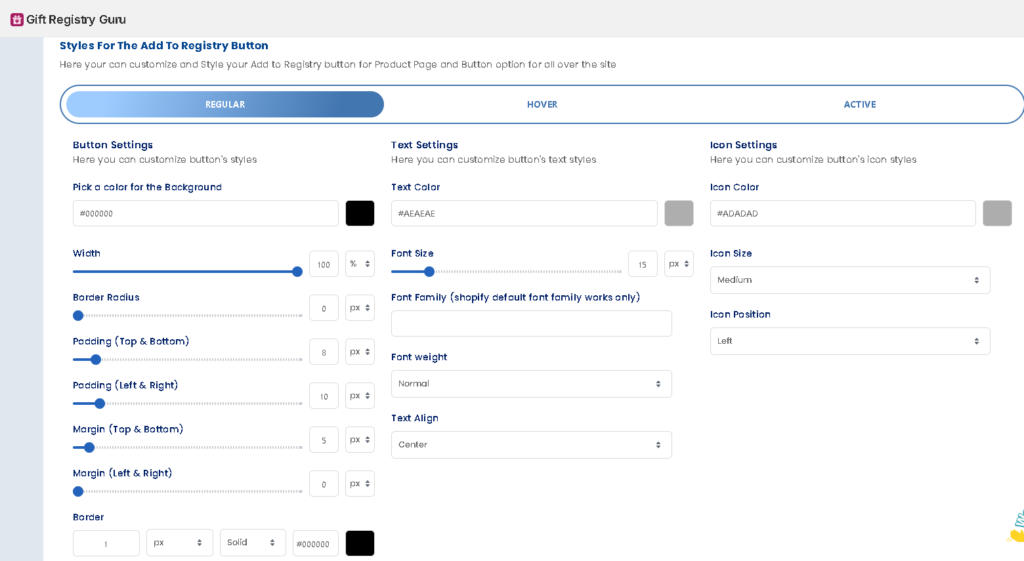
The Style Box lets you customize the visual appearance of the Add to Registry button — including colors, borders, font, and spacing.
There are three style states available:
- Regular – the button’s default appearance
- Hover – how the button looks when a shopper moves their cursor over it
- Active – how the button looks after a shopper clicks it (e.g., once the item is added to the registry)
Customize the Hover Style #
Use the Hover tab to set how the Add to Registry button changes appearance when a shopper hovers over it — for example, a slightly darker background color or a subtle border change. This gives shoppers visual feedback that the button is interactive.
Customize the Active Style #
Use the Active tab to set how the Add to Registry button looks once a product has been added to the registry — for example, changing the text to “Added to Registry” along with a different background color or icon state. This reassures shoppers that the item was saved successfully.
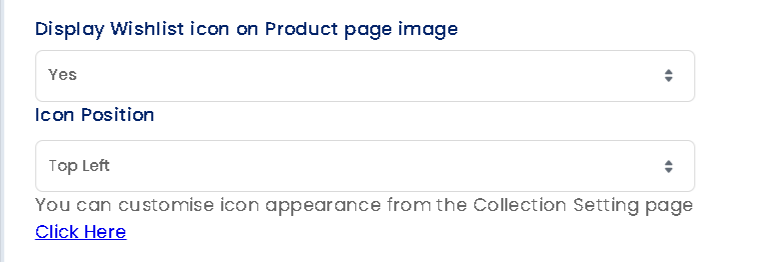
Choose Where the Button Appears #
You can show the Add to Registry button in the following locations on your product page:
- Product page image
- Beside the product title
- Beside the Add to Cart button
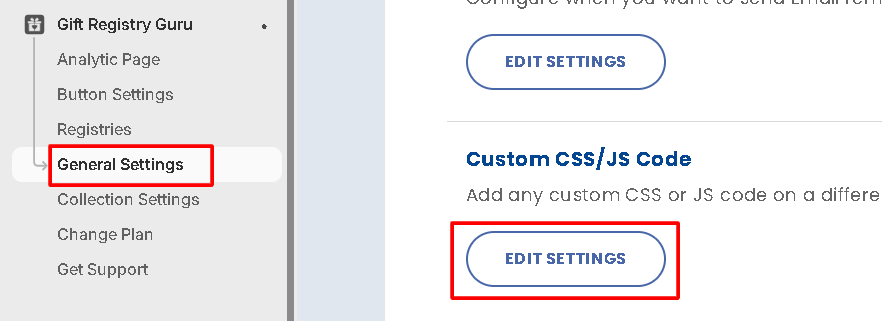
Custom CSS Styling (Basic Plan) #
If you’re on the Basic Plan, you can further customize the Add to Registry button’s appearance using Custom CSS for design changes not covered by the standard style options — such as custom border-radius values, gradients, shadows, or font families.
Frequently Asked Questions #
#
Go to Dashboard > Add to Registry Button Appearance > Configure, then use the Regular, Hover, and Active tabs to set colors, borders, and fonts.
#
You can choose from five layouts: Text + Background (no icon), Only Text (no background, no icon), Icon + Text + Background, Icon + Text (no background), or Icon + Background (no text).
#
Yes. In the Configure panel, under “Pick a Registry icon for your site,” choose between a heart, star, or bookmark icon. The bookmark icon is selected by default.
#
Yes. Use the “Pick animation for your button” dropdown to select an animation effect. The default setting is None, which keeps the button static.
#
Regular is the default look of the button, Hover is how it appears when a shopper’s cursor is over it, and Active is how it appears after the product has been added to the registry.
#
Yes. If you’re on the Basic Plan, you can use the Custom CSS field to add a gradient background using the example snippets provided for the Auto Inject and Theme Block buttons.
#
Yes. Always click Save in the top right corner of the dashboard after making style or placement changes, or your updates won’t apply to your live store.
#
Confirm the CSS class name matches your theme using your browser’s inspector tool, since class names can vary slightly between theme versions. Then re-check that your code was saved in the Custom CSS field.


