
Quick Answer #
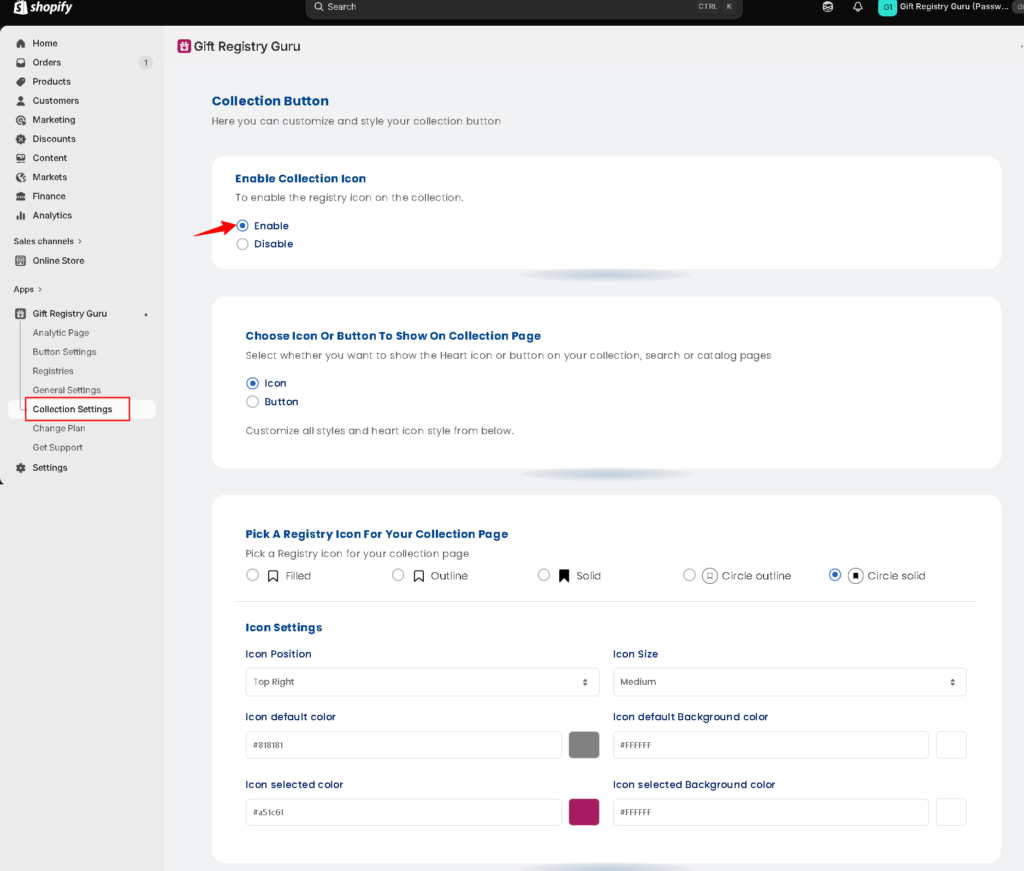
To enable the registry icon on product cards in your collection pages, go to Gift Registry Guru > Collection Settings from the left-hand navigation in your Shopify admin. Set Enable Collection Icon to Enable, choose whether to show an Icon or a Button, pick your icon style, and configure the icon position, size, and colors. Click Save to apply.
Showing a registry icon directly on product cards in your collection, search, and catalog pages makes it incredibly easy for shoppers to add items to their gift registry while they browse — without having to open each product individually. Gift Registry Guru lets you enable and fully customize this icon from the Collection Settings page with no coding required.
How to Open Collection Settings #
- Log in to your Shopify Admin.
- In the left-hand navigation, go to Apps > Gift Registry Guru.
- Click on Collection Settings in the Gift Registry Guru left-hand menu.
Step 1: Enable the Collection Icon #
At the top of the Collection Settings page, find the Enable Collection Icon section.
Select:
- Enable — to show the registry icon on product cards in your collection, search, and catalog pages.
- Disable — to hide the registry icon from collection pages entirely.
Step 2: Choose Icon or Button #
In the Choose Icon or Button to Show on Collection Page section, select how you want the registry option to appear on product cards:
- Icon — displays a small registry icon (bookmark/heart style) on each product card image. This is the recommended option for a clean, minimal look that doesn’t disrupt your collection page layout.
- Button — displays a text button on each product card instead of an icon, which is more prominent and suited to stores that prefer a more explicit call-to-action.
Step 3: Pick a Registry Icon Style #
In the Pick a Registry Icon for Your Collection Page section, choose which icon design appears on your product cards. There are five icon styles available:
- Filled — a solid filled bookmark icon
- Outline — a bookmark icon in outline style only
- Solid — a bold solid bookmark icon
- Circle Outline — an icon enclosed in a circle outline
- Circle Solid — an icon enclosed in a solid circle background (selected by default)
Step 4: Configure Icon Settings #
The Icon Settings section lets you control the exact position, size, and colors of the registry icon on your product cards.
Icon Position Choose where the icon appears on each product card image. The available positions are:
- Top Right (default)
- Top Left
- Bottom Right
- Bottom Left
Icon Size Choose the size of the registry icon on the product card:
- Small
- Medium (default)
- Large
Icon Default Color Set the hex color of the registry icon in its default (unselected) state — shown when a product has not yet been added to a registry. Default: #818181
Icon Default Background Color Set the hex color of the icon’s background in its default state. Default: #FFFFFF
Icon Selected Color Set the hex color of the registry icon when a product has already been added to a registry (active/selected state). Default: #a51c61
Icon Selected Background Color Set the hex color of the icon’s background in its selected state. Default: #FFFFFF
How It Looks on Your Storefront #
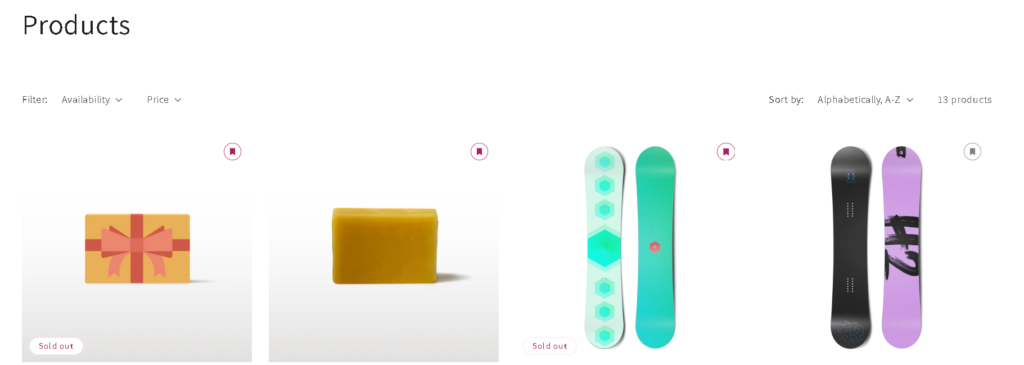
Once enabled and saved, the registry icon appears on the top-right corner (or your chosen position) of each product card across your collection, search, and catalog pages. Shoppers can click the icon to add any product directly to their registry without leaving the collection page.
When a product has been added to a registry, the icon updates to the selected color you configured, giving shoppers a clear visual indicator of which items are already on their list.
Frequently Asked Questions #
#
Go to Shopify Admin > Apps > Gift Registry Guru, then click Collection Settings in the left-hand navigation menu of the app.
#
Yes. Enabling the collection icon displays it across your collection pages, search results pages, and catalog pages — anywhere product cards are shown.
#
The Icon option shows a small, discreet bookmark-style icon on each product card image — ideal for a clean layout. The Button option shows a labeled text button on each product card, which is more prominent and explicit.
#
Yes. Use the Icon Selected Color and Icon Selected Background Color settings to customize how the icon appears after a shopper adds a product to their registry.
#
Yes — the icon style set in Collection Settings also applies to the registry icon shown on product page images. Changing the icon style or colors here will update both locations.
#
Yes. Go to Collection Settings and select Disable under Enable Collection Icon, then save. The icon will be removed from all collection pages while the rest of the app continues to function normally.


