
After installing Gift Registry Guru, your customers need a way to access their registry from your storefront. The most effective place to put this is your store’s main navigation menu — it’s visible on every page and drives the highest engagement.
Gift Registry Guru gives you two ways to add a registry link to your main menu:
- Method 1 – Automatic (via app settings): The app injects a single registry link into your menu automatically. Quickest option.
- Method 2 – Manual (via Shopify Navigation): You create a custom dropdown menu with separate pages for Create, Manage, and Find a Registry. Best for stores that want a polished, structured navigation experience.
Choose the method that fits your store’s needs. Both are covered below.
Method 1 – Automatic Menu Injection (Via App Settings) #
This is the fastest way to add Gift Registry Guru to your navigation. The app adds a registry link to your main menu automatically — no Shopify navigation editing required.
Step 1 – Open General Settings #
From your Gift Registry Guru admin panel, navigate to General Settings.
Step 2 – Find Registry Icon Location #
Scroll down to find the Registry Icon Location section and click Edit Settings.
You’ll see three placement options:
- As a menu item
- As a header icon
- As a floating icon button
Step 3 – Enable “As a Menu Item” #
Tick the checkbox next to As a menu item.
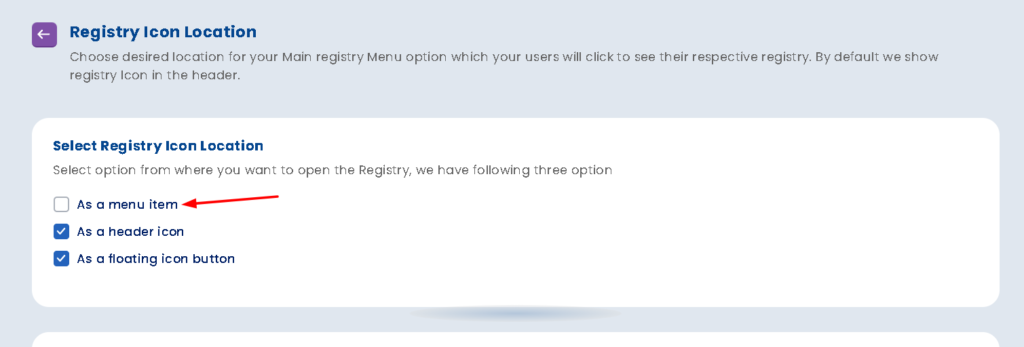
💡 Once checked, Gift Registry Guru will automatically inject a “Gift Registry” link into your store’s main navigation menu. No further action needed.
Step 4 – Save Your Settings #
Click Save. Visit your storefront to confirm the registry link appears in your main menu.
⚠️ Important: If you later decide to switch to Method 2 (manual dropdown), come back here and untick this checkbox first — otherwise you’ll end up with duplicate menu items.
Method 2 – Manual Dropdown Menu with Separate Registry Pages (Via Shopify Navigation) #
This method gives you full control. Instead of a single registry link, your main menu will display a dropdown with three separate landing pages:
| Menu Item | What It Does |
|---|---|
| Create a Registry | Takes customers to the registry creation page |
| Find a Registry | Lets guests search for someone’s registry |
| Manage Registries | Lets logged-in customers view and edit their registries |
This is the recommended approach for stores that want a professional, fully structured navigation experience.
Step 1 – Disable Automatic Menu Injection (If Previously Enabled) #
If you previously enabled Method 1, go back to General Settings → Registry Icon Location and untick the “As a menu item” checkbox. Save your settings.
This prevents a duplicate “Gift Registry” item from appearing alongside the dropdown you’re about to create.
Step 2 – Open Your Shopify Navigation Menu #
- In your Shopify Admin, click Content in the left sidebar
- Click Menus
- Select Main menu (this controls what appears in your store’s header navigation)
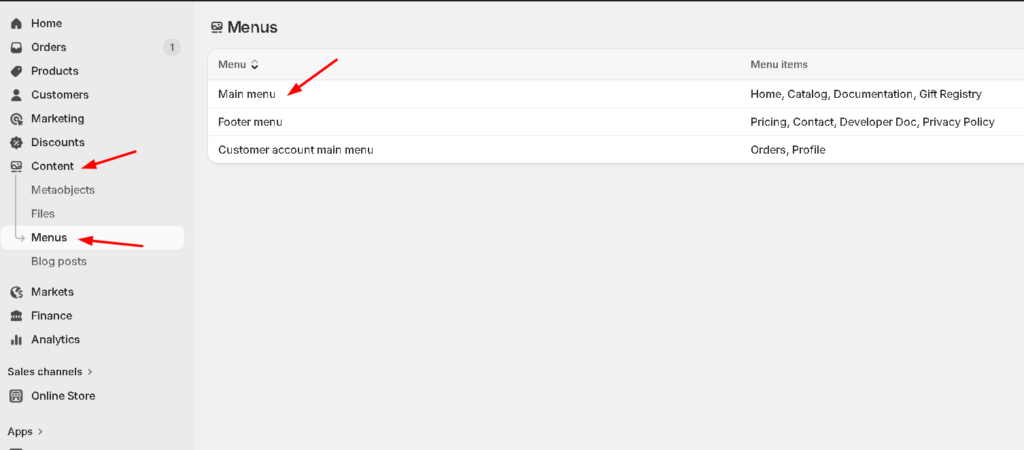
Step 3 – Create a “Gift Registry” Parent Menu Item #
On the Main menu page, click Add menu item. Name it Gift Registry. This will be the top-level label that your customers click to reveal the dropdown.
For the link field, you can set it to /apps/wf-gift-registry/create or leave it as a non-linked parent — either works.
Click Add to save the parent item.
Step 4 – Add the Three Sub-Menu Items #
Now add three child items nested under the Gift Registry parent. For each one, click Add menu item to Gift Registry and use the exact URLs below:
Sub-item 1 – Create a Registry
- Name: Create a Registry
- Link:
/apps/wf-gift-registry/create
Sub-item 2 – Find a Registry
- Name: Find a Registry
- Link:
/apps/wf-gift-registry/find
Sub-item 3 – Manage Registries
- Name: Manage Registries
- Link:
/apps/wf-gift-registry/list
Your menu structure should look like this when done:
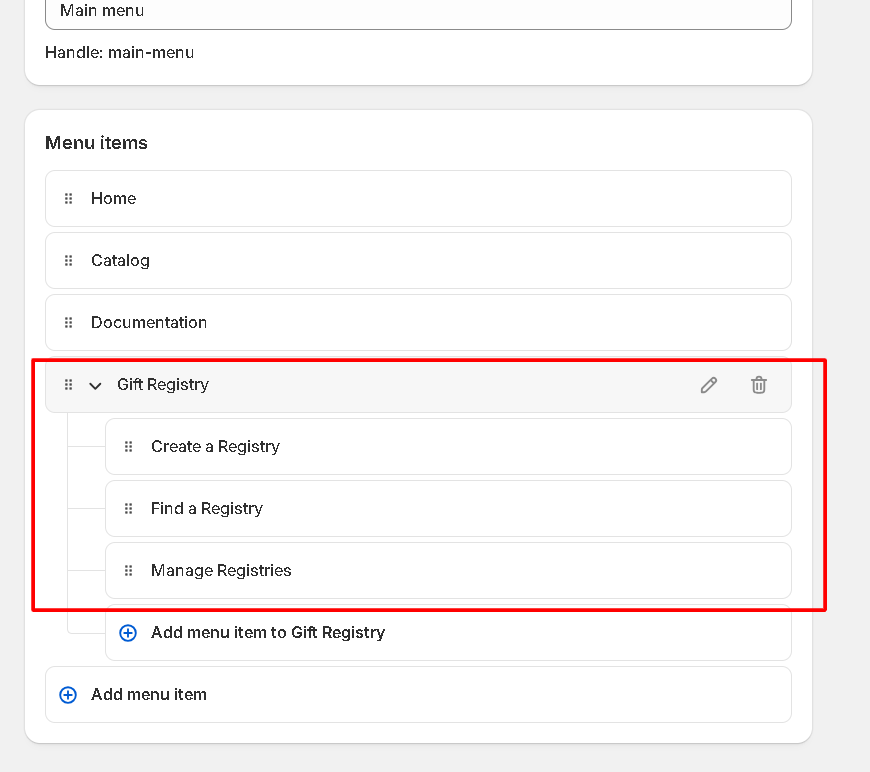
💡 Tip: The order of sub-items can be rearranged by dragging. Most stores place “Create a Registry” first since it’s the action new customers take most.
Step 5 – Save Your Menu #
Click Save menu at the top right of the Shopify navigation editor.
Which Method Should I Use? #
| Method 1 – Automatic | Method 2 – Manual Dropdown | |
|---|---|---|
| Setup time | Under 1 minute | 3–5 minutes |
| Navigation style | Single link | Dropdown with 3 pages |
| Best for | Quick launch, simple stores | Stores wanting structured UX |
| Customization | Limited | Full control over labels & order |
| Requires Shopify navigation editing | No | Yes |
Most growing stores start with Method 1 and switch to Method 2 as they want more control over the customer journey.
Frequently Asked Questions #
#
Yes. The labels (“Create a Registry”, “Find a Registry”, etc.) are just display names — you can call them anything you like. Only the URL paths matter for the pages to work correctly.
#
Yes. Follow the same steps in Method 2 but select Footer menu instead of Main menu in Step 2.
#
Yes. Shopify’s responsive navigation system handles mobile display automatically. The Gift Registry dropdown will appear as a collapsible section in your mobile menu.
#
You can enable both at the same time. Just check both “As a menu item” and “As a header icon” in your Registry Icon Location settings.
#
If you switch themes, navigation menus are preserved in Shopify’s backend — you won’t need to recreate them. However, you may need to re-enable the app embed in your new theme (see the setup guide).


