
Quick Answer #
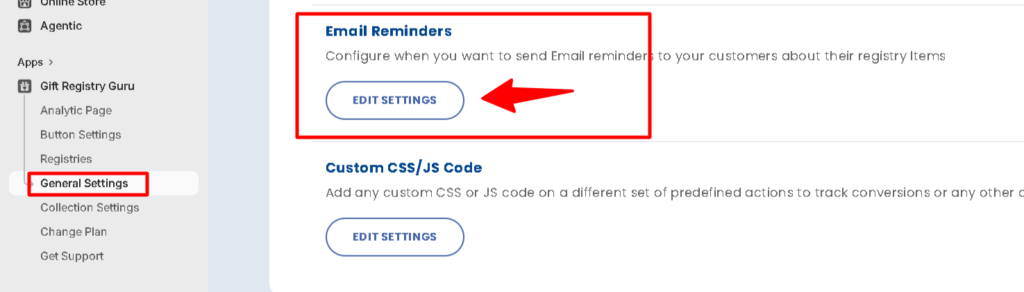
To configure email reminders, go to your Gift Registry Guru Dashboard > General Settings and scroll to the Email Reminders section. From here you can toggle on or off four automated reminder types, upload your store logo, configure sender details, and customize each email template — all without writing any code.
The Email Reminders section in Gift Registry Guru gives you centralized control over all automated email communications tied to your gift registries. Each reminder type can be enabled or disabled independently using a simple Yes / No toggle. All emails use the sender details and logo you configure in this same settings page, and every template can be fully customized to match your brand.
How to Open Email Reminder Settings #
- Go to your Gift Registry Guru Dashboard in your Shopify Admin.
- Click on General Settings in the left-hand sidebar.
- Scroll to the top of the page to find the Email Reminders section.
The four email reminder types #
Gift Registry Guru includes four automated email triggers. Here is what each one does and who receives it:
Registry Creation (Store Admin) #
This reminder sends an automated email to the store admin every time a customer creates a new gift registry in your store. It keeps your team informed of new registry activity in real time.
To enable: Click Yes on the Registry Creation Email Reminder Option toggle. Click No to disable it.

Note: This reminder is sent to the store admin only. The customer who created the registry does not receive a copy of this email.
Order Purchased (Admin & Registry Owner) #
This reminder sends an automated email to both the store admin and the registry owner when an item on a registry is purchased. It allows the registry owner to track which gifts have already been bought, helping to prevent duplicate purchases from guests.
To enable: Click Yes on the Order Purchased Email Reminder Option toggle. Click No to disable it.

Registry Event Coming (Registry Owner) #
This reminder sends an automated email to the registry owner as their event date approaches. It is especially useful for time-sensitive events like weddings or baby showers, giving the registry owner a heads-up to share their registry with guests before the date arrives.
To enable: Click Yes on the Registry Event Coming Email Reminder Option toggle. Click No to disable it.

Registry Event Closure (Admin & Registry Owner) #
This reminder sends an automated email to both the store admin and the registry owner when a registry is closed or its event date has passed. It notifies both parties that the registry is no longer active and that gift purchases can no longer be made through it.
To enable: Click Yes on the Registry Event Closure Email Reminder Option toggle. Click No to disable it.

| Reminder | Trigger | Recipient(s) |
|---|---|---|
| Registry Creation | Customer creates a new registry | Store Admin |
| Order Purchased | Registry item is purchased | Store Admin + Registry Owner |
| Registry Event Coming | Event date is approaching | Registry Owner |
| Registry Event Closure | Registry closes or event date passes | Store Admin + Registry Owner |
Upload your store’s logo #
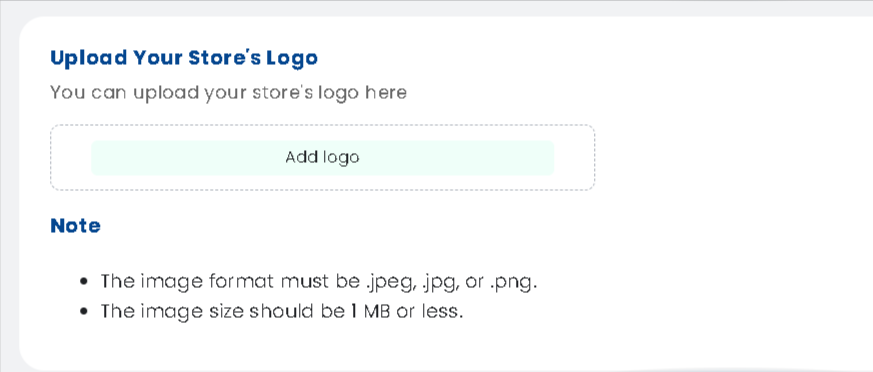
You can upload your store’s logo to appear in the header of all outgoing registry reminder emails, ensuring every notification looks on-brand.
To upload your logo:
- Select your logo image file from your device.
- Scroll to the Upload Your Store’s Logo section on the General Settings page.
- Click the Add logo button.
| Requirement | Detail |
|---|---|
| Accepted file formats | .jpeg, .jpg, .png |
| Maximum file size | 1 MB |
Tip: For best email rendering, use a logo with a transparent background (.png) and a minimum width of 300 px. Compress large files using a tool like TinyPNG before uploading.
Sender name & email configuration #
These three fields control how your emails appear in customers’ inboxes and where replies are routed. Fill in all three fields before enabling any reminder.
- Sender Name — Enter the name that will appear as the sender in the email. This is typically your store name (e.g., Bloom Bridal Boutique).
- Reply-To Email Address — Enter the email address where recipients should send their replies. This is the inbox your customers will write to when they respond to a reminder.
- Admin Email Address — Enter the admin email address to receive email notifications. This inbox receives admin-facing alerts such as Registry Creation and Order Purchased reminders.

Important: Do not leave any of these fields blank. Missing sender details can cause emails to be flagged as spam or delivered a app sender name.
Managing email templates #
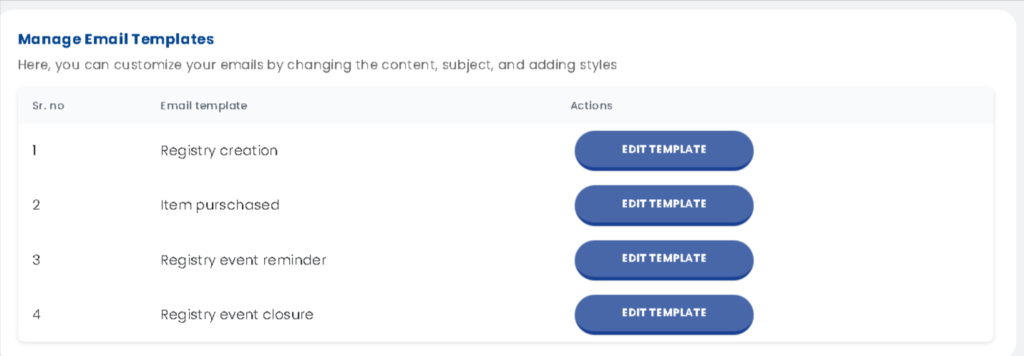
The Manage Email Templates section lets you customize the content, subject line, and styling of each automated email. Here you can change what every reminder says and how it looks before it reaches your customers.
There are four templates available — one for each reminder type:
| Email Template | Actions |
|---|---|
| Registry creation | EDIT TEMPLATE |
| Item purchased | EDIT TEMPLATE |
| Registry event reminder | EDIT TEMPLATE |
| Registry event closure | EDIT TEMPLATE |
To edit a template:
- Scroll to the Manage Email Templates table at the bottom of the Email Reminder page.
- Click EDIT TEMPLATE next to the template you want to customize.
- Update the subject line, body content, and any styling options in the template editor.
- Save your changes. Your logo (if uploaded) will appear automatically in the email header.
Frequently asked questions #
#
Go to Gift Registry Guru Dashboard > General Settings, then scroll to the Email Reminders section at the top of the page.
#
The Registry Creation Email Reminder is sent to the store admin only. The customer who created the registry does not receive a copy of this notification.
#
Both the store admin and the registry owner receive this email. The registry owner is notified which items have been purchased from their list, preventing duplicate gifts.
#
The Registry Event Coming Email Reminder is sent to the registry owner only. It notifies them as their event date approaches so they can share their registry or make last-minute updates.
#
Both the store admin and the registry owner receive the Registry Event Closure Email Reminder. It is sent when a registry closes or its event date has passed.
#
Gift Registry Guru accepts .jpeg, .jpg, and .png formats. The file must be 1 MB or smaller. A .png with a transparent background is recommended for the best result across email clients.
#
Yes. Gift Registry Guru includes four fully editable email templates — one for each reminder type. Scroll to Manage Email Templates on the General Settings page and click EDIT TEMPLATE next to the template you want to update. You can change the subject line, body content, and visual styling.
#
Leaving these fields blank may cause emails to be delivered without a recognizable sender name or route customer replies to an unexpected address. Fill in all three fields — Sender Name, Reply-To Email Address, and Admin Email Address — before enabling any reminders.
#
Yes. Email reminders apply to all registries created through Gift Registry Guru, regardless of event type — weddings, baby showers, birthdays, housewarmings, and any other event type your customers set up.


