
Quick Answer #
To view all registries, go to Gift Registry Guru Dashboard > Registries. The Registries Report Page lists every customer registry in your store. To see the full detail of any registry, click the eye icon (View button) in the Action column. Gift Registry Guru then opens the Registry User Report Page for that customer, showing all items and orders.
The Registries section in Gift Registry Guru has two layers. First, there is the Registries Report Page. This gives you a high-level list of all gift registries in your store. Second, there is the Registry User Report Page. This is the dedicated detail view for a single customer registry.
In addition, both pages work together. You start with the list view, then drill into any registry to see its items, gifting progress, and orders. This article walks you through both pages in order.
How to Open the Registries Report Page # #
First, open the Gift Registry Guru app from your Shopify Admin. Next, follow these steps to reach the Registries Report Page.
- Go to your Shopify Admin and open Gift Registry Guru from the Apps section in the left sidebar.
- Click Registries in the Gift Registry Guru left-hand sidebar.
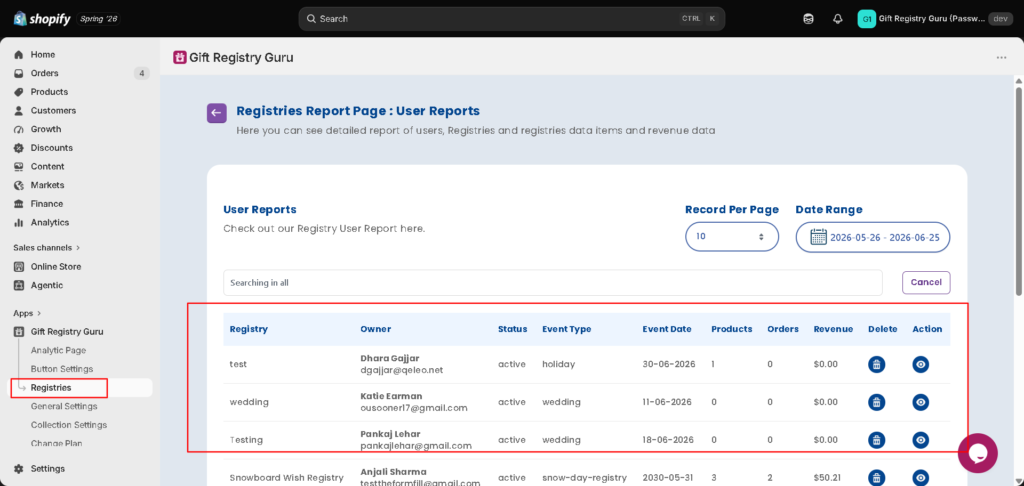
- The Registries Report Page: User Reports opens. It lists all gift registries in your store.
Understanding the User Reports Table # #
The User Reports table shows one row per registry. Here is what each column means:
| Column | Description |
|---|---|
| Registry | The name of the gift registry as set by the customer (e.g. “Snowboard Wish Registry”). |
| Owner | The full name and email address of the customer who created the registry. |
| Status | Whether the registry is active (visible to gifters, accepting purchases) or inactive (closed). |
| Event Type | The type of event the registry was created for — e.g. wedding, holiday, birthday, baby shower. |
| Event Date | The date of the event associated with the registry. |
| Products | The total number of products the registry owner has added to their list. |
| Orders | The total number of orders placed through this registry. |
| Revenue | The total revenue generated from purchases made through this registry. |
| Delete | 🗑 Delete — permanently removes the registry. |
| Action | 👁 View — opens the full Registry User Report Page for that registry. |
How to Filter by Date Range # #
Use the Date Range picker to narrow the list and show only registries active within a specific period.
- Locate the Date Range field in the top right of the User Reports section.
- Click on it to open the date picker.
- Select your desired start date and end date.
- The table will automatically update to show registries within that date range.
How to Change Records Per Page # #
By default, the table shows 10 registries per page. You can increase this to view more at once.
- Locate the Record Per Page dropdown in the top right of the User Reports section.
- Click the dropdown and select your preferred number of records per page.
- The table will refresh to display the updated number of rows.
How to Search for a Registry # #
Use the search bar to quickly find a registry by name, owner, event type, or any other field.
- Click the search bar at the top of the User Reports table. It shows “Searching in all” as placeholder text.
- Type your search term. The table filters results in real time.
- Click Cancel on the right of the search bar to clear the search and return to the full list.
How to Delete a Registry # #
- Find the registry you want to remove in the User Reports table.
- Click the 🗑 Delete button in the Delete column on that row.
- Confirm the deletion when prompted.
Important: Deleting a registry is permanent and cannot be undone. All items and order history associated with that registry will be removed.
How to Open a Customer’s Registry Detail # #
Once you are on the Registries Report Page, you can drill into any individual registry to see its full detail.
- Find the registry you want to inspect in the User Reports table.
- Click the 👁 View button in the Action column on that registry’s row.
- The Registry User Report Page for that customer’s registry will open.
This page is divided into two sections: Registry Items and Ordered Items. Both are explained below.
Registry Items Section # #
The Registry Items section lists every product the registry owner has added to their gift registry. It shows the gifting progress for each item and the remaining revenue potential.
| Column | Description |
|---|---|
| Sr. No | The serial number of the item in the registry list. |
| Title | The name of the product as it appears in your Shopify store. |
| Image | A thumbnail image of the product. |
| Price | The price of the product at the time it was added to the registry. |
| Gifted | Shows units purchased out of the total requested. 2/3 means 2 of 3 units have been gifted. 0/1 means the item has not yet been bought. |
| Potential Value | The revenue that would be generated if all remaining ungifted units are purchased. Calculated as Price × Ungifted Units Remaining. |
| Delete | 🗑 Delete — permanently removes this item from the registry. |
Tip: Use the Gifted column to spot items that still need to be purchased. For example, a value of 0/1 means no gifter has bought that item yet. As a result, you can share this insight with the registry owner so they can remind their guests.
How to Delete an Item from the Registry #
To remove an item, follow these steps.
- Find the item you want to remove in the Registry Items table.
- Click the 🗑 Delete button in the Delete column on that row.
- Confirm the deletion when prompted.
Important: Deleting an item from the registry is permanent. The item will be removed from the registry owner’s list immediately and cannot be restored.
Ordered Items Section # #
The Ordered Items section shows every purchase made through this registry. Each row represents one order line. As a result, you get a complete view of who bought what, how much they paid, and how many units they ordered.
| Column | Description |
|---|---|
| Sr. No. | The serial number of the order line in the list. |
| Order Id | The Shopify order ID for the purchase (e.g. #1002). Cross-reference this in Shopify Admin > Orders for fulfillment and payment details. |
| Title | The name of the product that was ordered. |
| Image | A thumbnail image of the ordered product. |
| Price | The price paid for the product at the time of the order. |
| Quantity | The number of units ordered in this transaction. |
| Customer Name | The full name of the gifter who placed the order. |
| Customer Email | The email address of the gifter who placed the order. |
Tip: Use the Order Id column to quickly jump to the full order in Shopify Admin > Orders. From there, you can check shipping, payment, and fulfillment details.
Frequently asked questions #
#
Go to your Gift Registry Guru Dashboard in Shopify Admin and click Registries in the left-hand sidebar. This opens the Registries Report Page: User Reports, which lists all gift registries created in your store.
#
The User Reports table shows each registry’s name, owner name and email, status (active or inactive), event type, event date, number of products added, number of orders placed, total revenue generated, and buttons to Delete or View the registry.
#
Use the Date Range picker in the top right of the User Reports section. Click it to select a start and end date. The table will update to show only registries active within that period.
#
In the Registries Report Page, find the registry you want to inspect and click the eye icon (View button) in the Action column. This opens the Registry User Report Page for that individual registry, showing all its items and orders.
#
The Gifted column shows how many units have been purchased out of the total quantity requested. 2/3 means 2 of 3 units have been gifted. 0/1 means the item has not yet been purchased by anyone.
#
Potential Value is the total revenue that would be generated if all remaining ungifted units of that item are purchased. It is calculated as item price multiplied by the number of ungifted units remaining.
#
The Ordered Items section shows every purchase made through that specific registry. Each row displays the order ID, product title, image, price paid, quantity ordered, and the customer name and email of the gifter who placed the order.
#
In the Registries Report Page, click the trash icon (Delete button) in the Delete column next to the registry you want to remove, then confirm the deletion. This action is permanent and cannot be undone.
#
Click the back arrow (←) button at the top left of the Registry User Report Page, next to the page heading. This returns you to the Registries Report Page: User Reports list.


