
Quick answer: To edit storefront text, go to Gift Registry Guru > General Settings > Language Settings/Multiple Language Support > Edit Settings, then click Edit Translations next to the language you want to update. From there you can customize every piece of text shown on your registry storefront — product page prompts, registry forms, share pages, notifications, and more — for each language you’ve added.
Once you’ve added a language to your store, the next step is making sure the wording matches your brand voice and reads naturally for your customers. Gift Registry Guru gives you full control over every text field shown across the registry experience, with no coding required.
Steps to Edit Storefront Text and Translations #
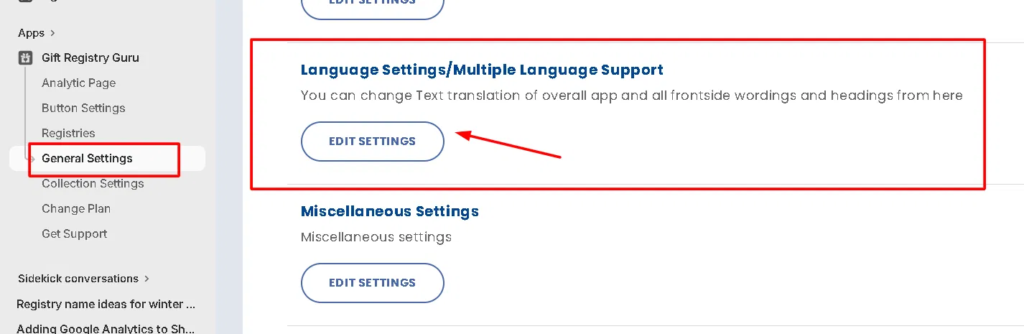
- Go to Gift Registry Guru > General Settings.
- Click Edit Settings on the Language Settings/Multiple Language Support card.
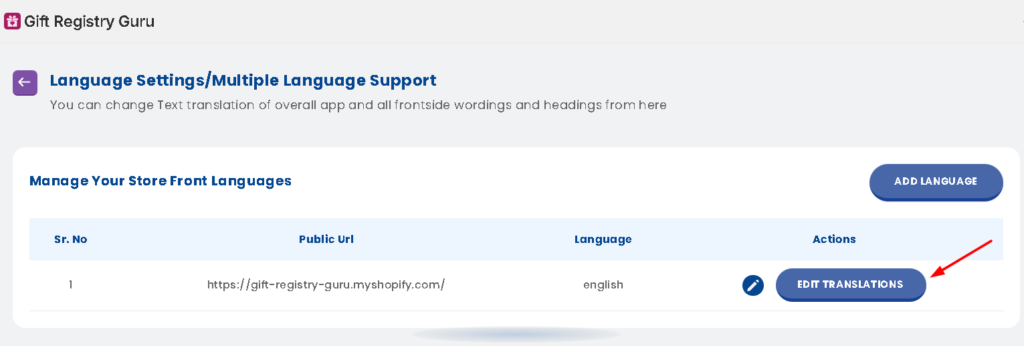
- On the Manage Your Store Front Languages page, click Edit Translations next to the language you want to customize.
- Locate the text field you want to change.
- Update the wording as needed.
- Click Save to apply your changes.
Repeat this process for each language you’ve added — translations are managed separately per language.
What You Can Customize #
The translation editor is organized into sections that mirror the actual customer journey through your registry, so you can find and update text quickly.
Product Page #
Text shown on the product page itself, including the button label used to add an item to a registry and the messaging shown before and after an item is added.
Owner, Renter & Guest Registry Program #
Core registry terminology and messaging — labels like “registry,” registry type names, and the wording used throughout the registry creation and management flow, including headings, descriptions, and empty-state text.
Registry Listing Page #
Text shown on the page listing all of a customer’s registries, including headings, empty-state messages, and prompts to create a new registry.
Create Registry Form Page #
All labels and placeholder text used in the registry creation form — fields like registry title, event date, event type, co-registrant details, shipping address, and privacy/status options.
Find Registry Page #
Wording for the registry search experience, including search field labels, button text, and “no results found” messaging.
Share Registry Page #
Text used when a customer shares their registry, including share link labels, copy-link confirmations, and social share button text.
Password Protected Form #
Messaging shown when a registry is password protected, including the password field label and error/success text.
Update Navigation Options #
Labels used in menu and navigation links related to the registry feature.
Update Tab Options on Share Page #
Text for the tabs shown on the share page (e.g., link sharing vs. email sharing).
Registry Page #
The full set of text shown on the live registry page itself — headings, item labels, quantity and purchase messaging, and notifications shown to gift-givers as they shop from the registry.
Why This Matters for Merchants #
- Match your brand voice instead of relying on generic or literal translations.
- Improve the gifting experience for international customers by making every step — from finding a registry to sharing it — feel native to their language.
- Stay consistent across every touchpoint, since all customer-facing text lives in one place.
Frequently Asked Questions #
#
Go to General Settings > Language Settings/Multiple Language Support > Edit Settings, then click Edit Translations next to the language you want to update
#
Yes. Add the language first from the Manage Your Store Front Languages page, then edit its translations.
#
Yes. Repeat the edit process separately for each language you’ve added — the number of languages available depends on your plan (2 on Basic, unlimited on Pro and Premium).
#
Everything customer-facing across the registry experience: product page prompts, registry creation form labels, the registry listing page, the find-a-registry search page, share and password-protection messaging, navigation labels, and the live registry page itself.
#
Yes, once you click Save, the updated text is reflected on your live storefront for that language.
#
You can manually re-enter the original text in any field at any time; there’s currently no one-click reset.


