
Quick answer: To add a language in Gift Registry Guru, go to General Settings > Language Settings/Multiple Language Support > Edit Settings > Add Language, choose your domain URL type, enter the language slug, and select the language from the dropdown. Basic plan stores can add up to 2 languages; Pro and Premium plan stores get unlimited languages.
Gift Registry Guru offers seamless multilingual support, helping Shopify merchants create a globally accessible registry experience for customers. You can add multiple languages to your storefront so gift-givers everywhere can browse, search, and purchase from registries in their preferred language.
Language Limits by Plan #
| Plan | Languages Included |
|---|---|
| Basic | Up to 2 languages |
| Pro | Unlimited languages |
| Premium | Unlimited languages |
If your store is on the Basic plan and you need to support more than two languages, upgrade from General Settings > Change Plan.
Steps to Add a Language #
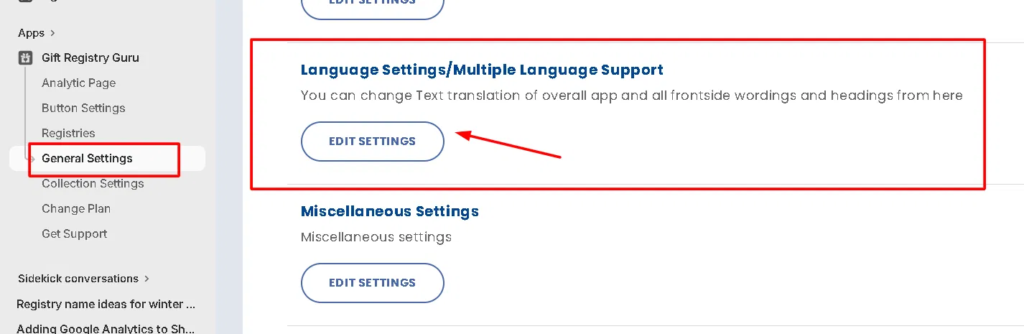
- Go to Gift Registry Guru > General Settings.
- Find the Language Settings/Multiple Language Support card and click Edit Settings.
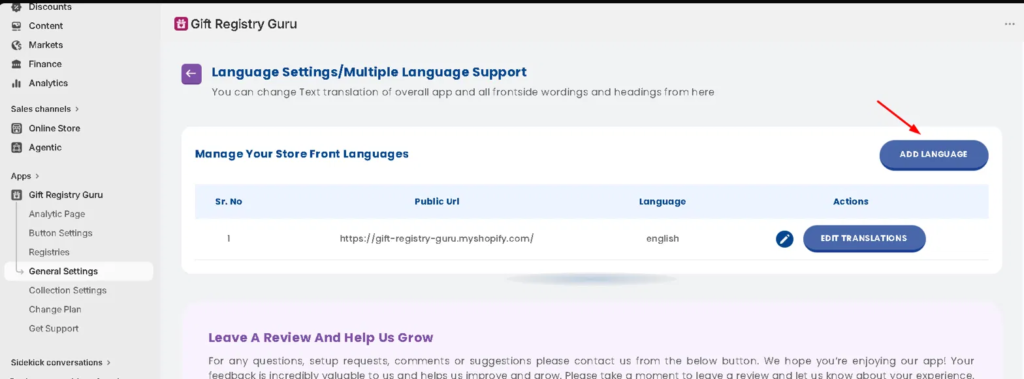
- You’ll land on the Manage Your Store Front Languages page, showing every language already configured along with its public URL. Click Add Language (top right).
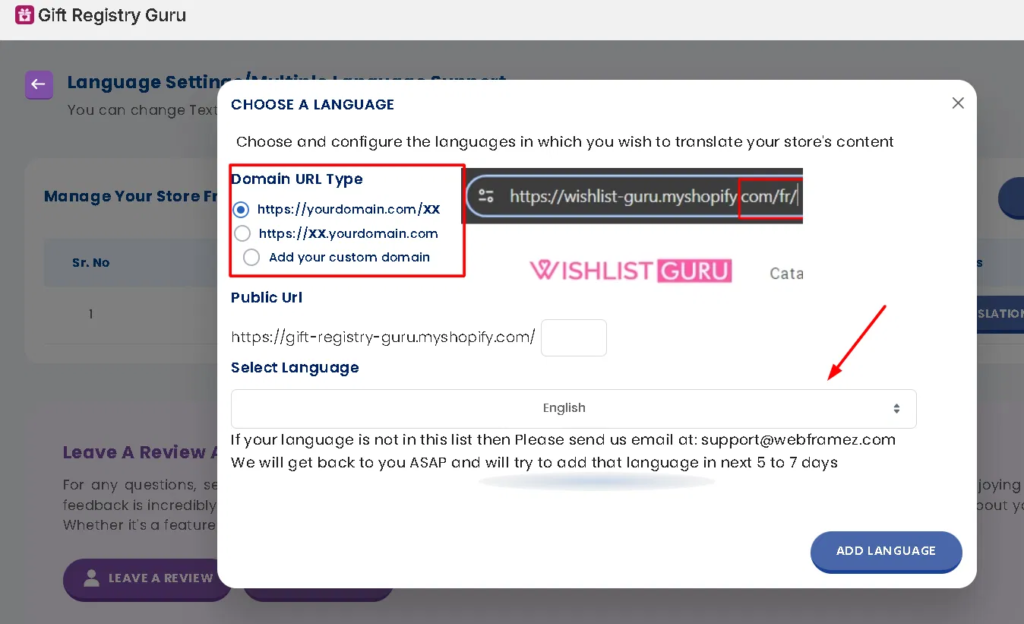
- In the Choose a Language pop-up, select your Domain URL Type based on how your language switcher structures URLs:
https://yourdomain.com/XX— language code appended to the domainhttps://XX.yourdomain.com— language code as a subdomain- Add your custom domain — for a fully custom URL structure
- Enter the language slug in the Public URL field. For example, if adding French, the slug is typically
fr. - Select the language from the Select Language dropdown — supported languages include Albanian, Arabic, Brazilian Portuguese, Bulgarian, Chinese (Simplified & Traditional), Czech, Danish, Dutch, Filipino, Finnish, French, German, Greek, Hebrew, Hungarian, Italian, Irish, Indonesian, and more.
- Click Add Language to complete setup.
That’s it — Gift Registry Guru handles the translation framework automatically once a language is added.
Can’t find your language? Email support@webframez.com. Our team will typically add it within 5–7 business days.
Editing or Removing a Language #
If you selected the wrong URL type or need to make changes later, click the pencil/edit icon next to the language in your list, update the settings, and hit Save.
Why Add Multiple Languages? #
- Reach international shoppers without hiring translators or developers.
- Reduce bounce rates from gift-givers who land on an English-only registry page.
- Scale with your business — start with 2 languages on Basic, then move to Pro or Premium for unlimited languages as you grow into new markets.
Once your languages are added, head over to our companion article, How to Edit Storefront Text and Translations, to customize the actual wording shown to customers in each language.
Frequently Asked Questions #
#
Up to 2 languages. Pro and Premium plans support unlimited languages.
#
Go to General Settings > Language Settings/Multiple Language Support > Edit Settings > Add Language.
#
Three options: a path-based URL (yourdomain.com/XX), a subdomain (XX.yourdomain.com), or a fully custom domain.
#
Contact support@webframez.com and the team will typically add it within 5 to 7 business days.
#
Yes, if you’re on Basic and need more than 2 languages, upgrade to Pro or Premium for unlimited languages.
#
Yes. Click the edit icon next to any language on the Manage Your Store Front Languages page.


