
Quick answer #
Gift Registry Guru’s Miscellaneous Settings let merchants control shared registry visibility with three toggles: automatically hide out-of-stock items, let registry owners add their own items to cart, and automatically remove items once their requested quantity has been purchased. Find these under Gift Registry Guru > General Settings > Miscellaneous Settings > Edit Settings. All three are set to “No” by default, and none of them affect the registry owner’s personal list — only what gift-givers see on the shared registry page.
The Miscellaneous Settings page lets you fine-tune how registry items behave once they’ve been shared, purchased, or gone out of stock. These options give you control over what your customers’ gift-givers see on the shared registry page, without ever changing what appears on the registry owner’s own list.
How to Access Miscellaneous Settings #
- From your Shopify admin, open the Gift Registry Guru app.
- In the left-hand menu, click General Settings.
- Locate the Miscellaneous Settings card and click Edit Settings.
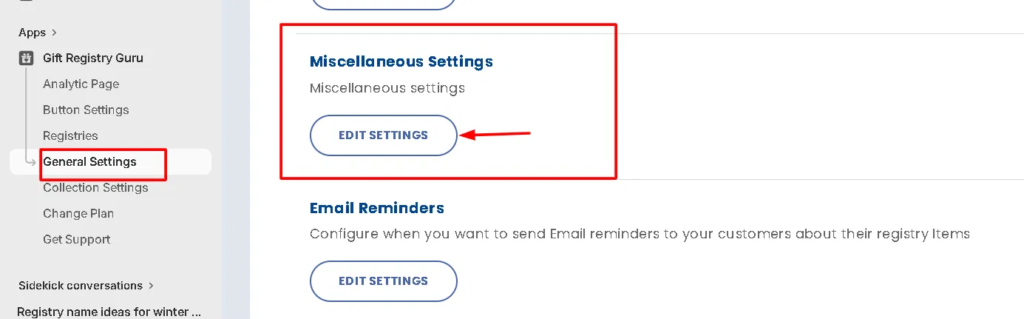
This opens the Miscellaneous Settings page, where you’ll find three toggles.
Settings Overview #
Remove Registry Items If Out Of Stock #
Controls whether an item automatically disappears from the shared registry page when it goes out of stock.
- Yes — Out-of-stock items are hidden from gift-givers viewing the shared registry, so they won’t try to purchase something unavailable.
- No (default) — Out-of-stock items remain visible on the shared registry page.
Note: This setting only affects the shared registry view. The item always stays on the registry owner’s personal list, regardless of this setting.

Show Add To Cart Button In Owner List #
Controls whether the registry owner sees a Move to Cart button on their own registry list, letting them purchase their own registered items.
- Yes — The registry owner can add items from their own list straight to their cart.
- No (default) — The button is hidden, and the owner cannot buy items directly from their own registry list.

Remove Registry Items After Moving To Cart #
Controls whether an item is automatically removed from the shared registry page once a gift-giver has moved it to their cart and its requested quantity has been fully reached.
- Yes — Once the requested quantity is fulfilled, the item disappears from the shared registry so other gift-givers don’t attempt to purchase it again.
- No (default) — The item stays visible on the shared registry page even after the requested quantity has been reached.
Note: Like the out-of-stock setting, this only removes the item from the shared registry page. It always remains on the registry owner’s own list.

Why These Settings Matter #
Together, these three toggles help prevent common gifting mix-ups:
- Avoid disappointed gift-givers by hiding items that are out of stock or already fully purchased.
- Give registry owners flexibility to buy items for themselves if they choose.
- Keep the owner’s master list intact at all times — these settings only ever affect what’s visible on the shared registry page, never the owner’s private view.
FAQ #
Where do I find Miscellaneous Settings in Gift Registry Guru?
Go to Gift Registry Guru > General Settings, then click Edit Settings on the Miscellaneous Settings card.
Will turning on “Remove Registry Items If Out Of Stock” delete the item from the registry?
No. The item is only hidden from the shared registry page that gift-givers see. It stays on the registry owner’s own list at all times.
Can registry owners buy gifts from their own registry?
Only if you turn on Show Add To Cart Button In Owner List. By default this is off, so owners cannot add their own registry items to cart.
What happens when a gift is fully purchased?
If Remove Registry Items After Moving To Cart is set to “Yes,” the item disappears from the shared registry page once its full requested quantity has been bought, preventing other gift-givers from trying to purchase more.
Are these settings on by default?
No. All three toggles default to “No,” meaning items stay visible on the shared registry and owners can’t add their own items to cart, unless you turn them on.
Do these settings affect the registry owner’s personal list?
No. All three settings only change what’s visible on the shared registry page. The registry owner’s own list is never affected.


