
Quick Answer #
To activate Gift Registry Guru on a draft or unpublished theme, duplicate your live theme from Online Store > Themes, then open the duplicate theme’s Customize > App Embeds and toggle the Gift Registry Guru embed to On. Hit Save — the app is now active on your test theme without affecting your live storefront.
Testing a new Shopify theme before publishing it live is a best practice every store owner should follow. Gift Registry Guru supports this workflow — you can activate the gift registry feature on any unpublished or duplicate theme so you can preview exactly how it looks and behaves before your customers ever see it.
This guide walks you through enabling Gift Registry Guru on a draft theme, and also covers how to disable the app on your live theme while testing so you have full control over what shoppers see.
Step-by-Step: Enable Gift Registry Guru on a Draft or Duplicate Theme #
Step 1: Install Gift Registry Guru on your store #
If you haven’t already, install Gift Registry Guru from the Shopify App Store and complete the initial setup.
Step 2: (Optional) Disable the app on your live theme while testing #
If Gift Registry Guru is already active on your live theme and you want to test on a duplicate without showing any changes to customers, temporarily disable the app on your live theme first. See How to Disable Gift Registry Guru on Your Live Theme below.
Step 3: Create a duplicate of your current theme #
To safely test without touching your live design:
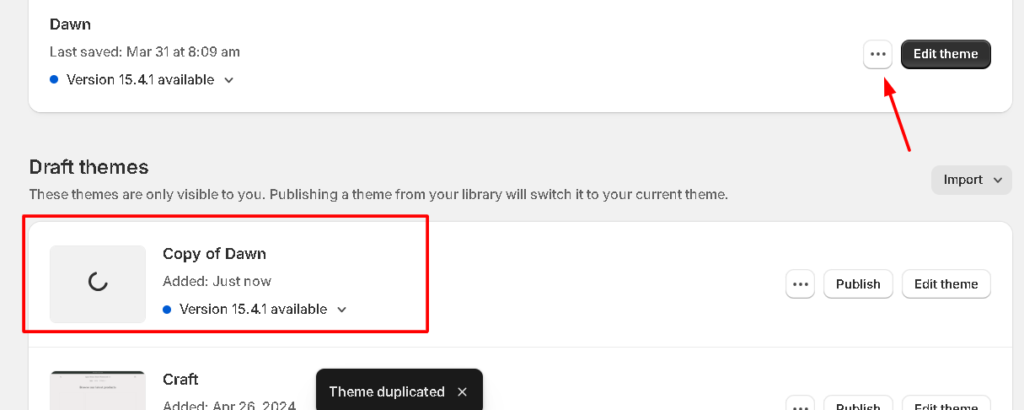
- In your Shopify admin, go to Online Store > Themes.
- Find your current live theme, click the three dots (⋯) menu next to it.
- Click Duplicate.
This creates a copy of your live theme, labelled something like “Copy of [Theme Name]”, which you can freely customize and test without affecting the live store.
Step 4: Open the duplicate theme’s Customizer #
Find the newly created duplicate theme in your theme list and click Customize to open it in the Shopify Theme Customizer.
Step 5: Enable Gift Registry Guru via App Embeds #
- Inside the Theme Customizer, click App Embeds (found in the left sidebar or the bottom-left menu, depending on your Shopify version).
- Locate the Gift Registry Guru toggle.
- If it’s not already turned On, click it to enable it.
- Click Save (top right corner).

Gift Registry Guru is now active on your duplicate theme. You can preview product pages, test the Add to Registry button, and confirm everything looks and works correctly before publishing the theme live.
How to Connect a Different Theme to Gift Registry Guru #
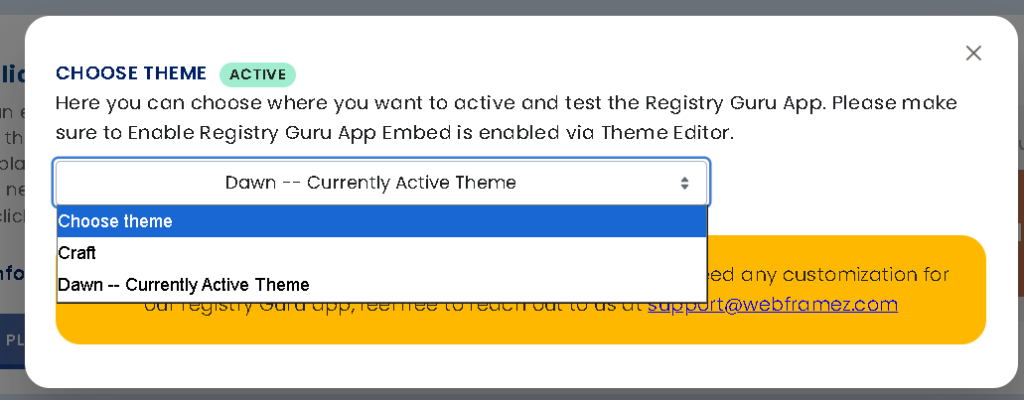
If you want to connect a completely different (unpublished) theme — not just a duplicate — you can do this directly from the Gift Registry Guru dashboard:
- Go to your Gift Registry Guru Dashboard.
- Find the theme switcher section and select the theme you want to connect.
- Click the Enable button — this will redirect you to that theme’s Theme Customizer.
- In the Theme Customizer, go to App Embeds and confirm the Gift Registry Guru toggle is On.
- Click Save.

How to Disable Gift Registry Guru on Your Live Theme #
If you want to turn off Gift Registry Guru on your currently published theme — for example, while you’re testing on a duplicate — follow these steps:
- In your Shopify admin, go to Online Store > Themes.
- Next to your live (published) theme, click Customize.
- Inside the Theme Customizer, click App Embeds.
- Find the Gift Registry Guru toggle and switch it to Off.
- Click Save.
Gift Registry Guru will no longer appear on your live storefront until you re-enable it.

Note: Disabling the app embed only hides Gift Registry Guru from that theme’s storefront. Your registry data, settings, and configurations are all preserved and will be exactly as you left them when you re-enable the app.
Frequently Asked Questions #
#
No. Disabling the app embed only removes the gift registry UI from your storefront. All customer registry data, settings, and configurations are safely stored and unaffected.
#
Yes. You can enable the app embed on multiple themes simultaneously. However, if you want to test in isolation without any gift registry features appearing on your live store, disable the embed on your live theme while testing.
#
No. The entire process uses the Shopify Theme Customizer’s App Embeds toggle — no code editing required.
#
Duplicating creates an exact copy of your live theme, which is useful for testing design or layout changes safely. Connecting a completely different theme (via the Gift Registry Guru dashboard’s theme switcher) lets you set up the app on a brand-new or purchased theme that’s not yet published.
#
Once you’re satisfied with how Gift Registry Guru looks on your duplicate theme, go to Online Store > Themes, find the duplicate, click the three dots (⋯) menu, and select Publish. Make sure the Gift Registry Guru app embed is still toggled On in the newly published theme’s App Embeds settings.


