
Quick Answer #
Gift Registry Guru automatically creates three key pages on your Shopify store: Create a Registry (/apps/wf-gift-registry/create), Find a Registry (/apps/wf-gift-registry/find), and Manage Registries (/apps/wf-gift-registry/list). All three pages should be added to your store’s navigation menu for a complete, shopper-friendly gift registry experience.
When Gift Registry Guru is installed on your Shopify store, it sets up a set of dedicated pages that power the full gift registry experience — for both the shoppers creating registries and the friends and family buying gifts from them. Understanding what each page does, its URL, and where it should appear in your store helps you launch a polished, professional registry setup from day one.
Overview: Registry Pages and Who They’re For #
Gift Registry Guru supports two types of visitors to your store:
Registry Creators (your customers) — shoppers who want to create and manage their own gift registry on your store.
Gifters — friends and family who want to find a registry and purchase gifts for the registry creator.
The five pages below serve both groups, and together they form the complete gift registry journey on your storefront.
Page 1: Create a Registry #
| Page Name | Create a Registry |
| Page URL | yourstore.com/apps/wf-gift-registry/create |
| Who it’s for | Registry creators |
| Login required | Yes — customers must be logged in to create a registry |
| Add to navigation menu | ✅ Yes — recommended |
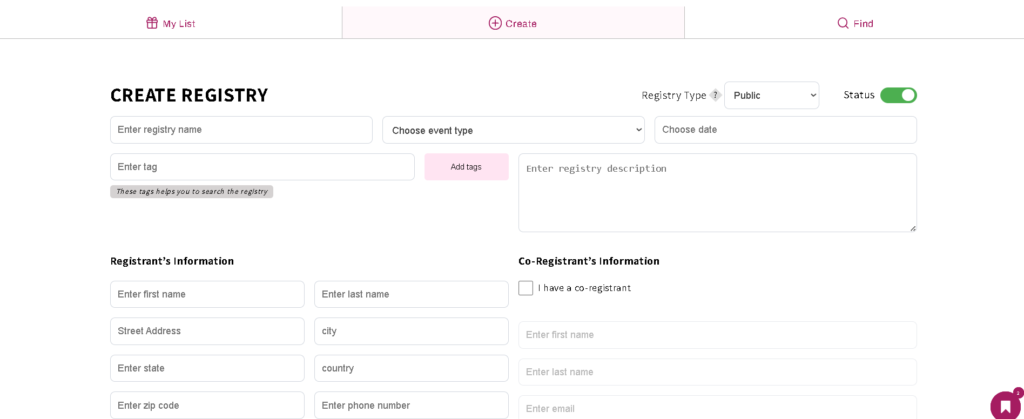
This is the page where customers start their gift registry. From here, they can fill in the registry details — such as the registry name, event type, event date, and any other information you’ve configured — and create their registry in just a few steps.
This page can be accessed directly via the URL above, or you can link to it from your navigation menu so customers can find it easily from anywhere on your store.
Page 2: Find a Registry #
| Page Name | Find a Registry |
| Page URL | yourstore.com/apps/wf-gift-registry/find |
| Who it’s for | Gifters searching for a registry |
| Login required | No — gifters can search without an account |
| Add to navigation menu | ✅ Yes — recommended |
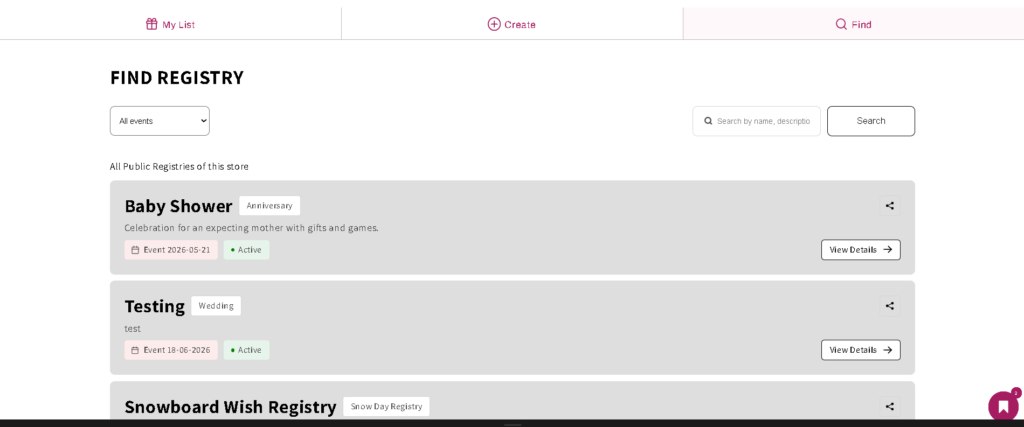
This is the search page for gifters. When a friend or family member wants to find a registry on your store, they come here and can search by the registry creator’s name, event name, or other registry details.
Adding this page to your navigation menu is important — without it, gifters have no easy way to discover registries on your store, which means missed gift purchases and a poor experience for registry creators trying to share their list.
Page 3: Manage Registries #
| Page Name | Manage Registries |
| Page URL | yourstore.com/apps/wf-gift-registry/list |
| Who it’s for | Registry creators managing their existing registries |
| Login required | Yes — customers must be logged in |
| Add to navigation menu | ✅ Yes — recommended |
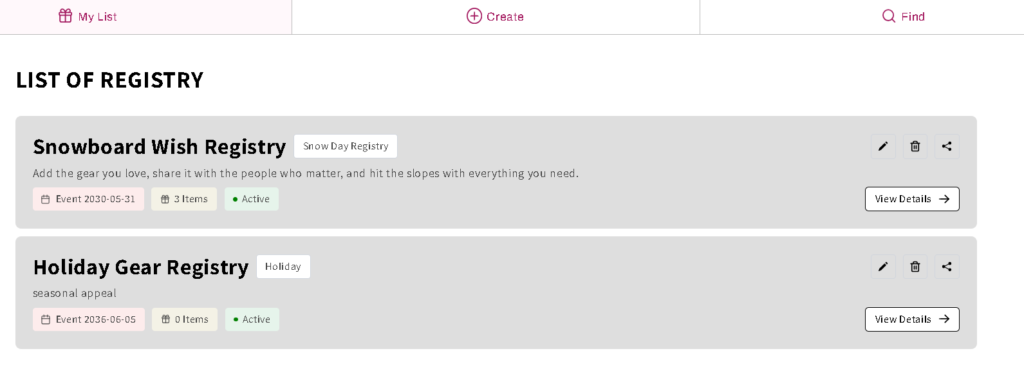
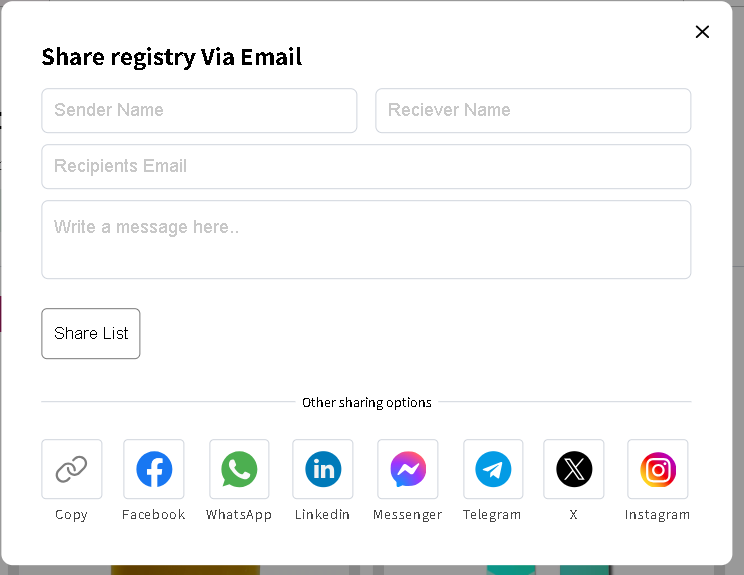
This is the registry creator’s dashboard. Once a customer is logged in, this page shows all the registries they’ve created, lets them add or remove products, update registry details, track purchases made from their registry, and share their registry link with friends and family.
This page is the central hub for any customer who has already created a registry, so it should always be easy to find in your store’s navigation.
Page 4: View a Registry as a Registrant #
| Page Name | View a Registry (Registrant View) |
| Page URL | yourstore.com/apps/wf-gift-registry/list?id={registryId} |
| Who it’s for | The registry creator viewing their own specific registry |
| Login required | Yes — the customer must be logged in |
| Add to navigation menu | ❌ No — this page is unique per registry and accessed dynamically |
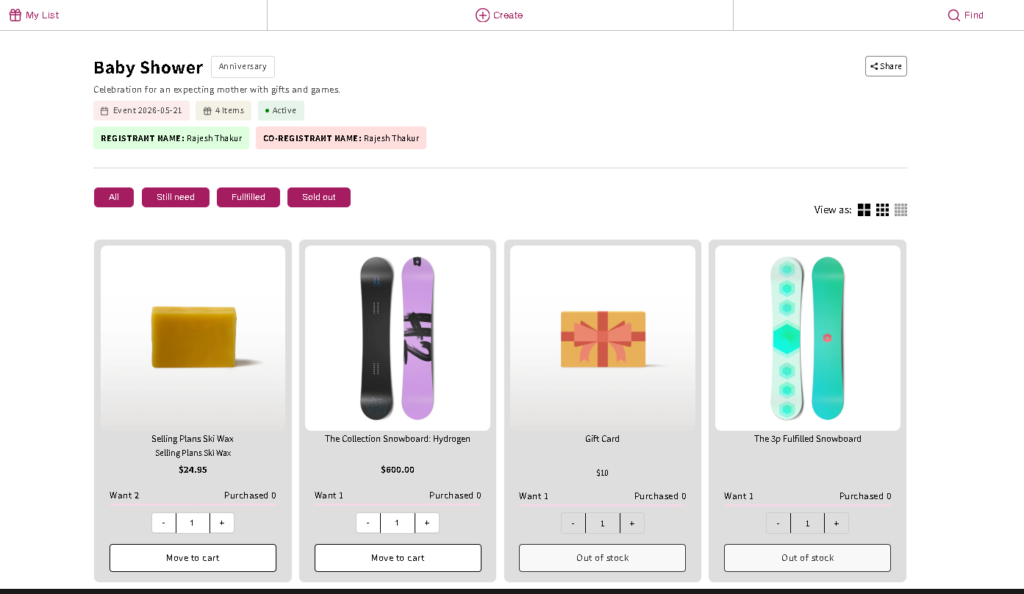
This page is the detailed view of a single registry from the registry creator’s perspective. It’s accessed by clicking on a specific registry from the Manage Registries page, with the {registryId} in the URL automatically filled in for the registry being viewed.
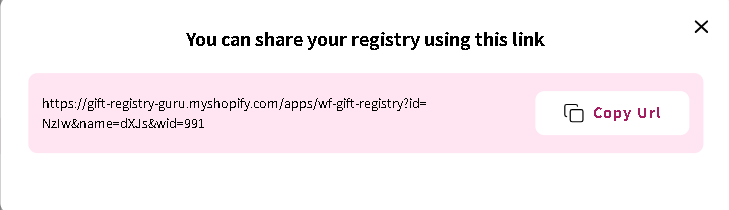
From here, the registry creator can see all the products on their registry, check which items have been purchased, manage their registry details, and copy their shareable registry link to send to friends and family.
Because this URL is unique to each registry, it should not be added to your navigation menu — customers reach it naturally by clicking through from their Manage Registries page.
Page 5: View a Registry as a Gifter #
| Page Name | View a Registry (Gifter View) |
| Page URL | Dynamic — shared by the registry creator |
| Who it’s for | Friends and family purchasing gifts from a registry |
| Login required | No — gifters do not need an account |
| Add to navigation menu | ❌ No — this page is unique per registry and shared via a link |
This is the page that gifters see when the registry creator shares their registry link with them. The URL is generated dynamically for each registry, and the registry owner shares it directly with friends and family via email, messaging, or social media.
From this page, gifters can browse all the products on the registry, see which items have already been purchased (so they avoid duplicates), add a personal message or name, and proceed to checkout to buy a gift.
Because the URL is unique to each registry and shared privately by the creator, this page should not be added to your navigation menu.
Frequently Asked Questions #
#
Yes. All five pages are set up automatically when you install the app. You don’t need to create them manually — you only need to add the Create a Registry, Find a Registry, and Manage Registries pages to your navigation menu.
#
No. Gifters can view a shared registry and proceed to checkout without creating an account. Only the registry creator needs to be logged in to create and manage their registry.
#
The registry creator shares their unique registry link directly with friends and family — via email, a messaging app, or social media. Gifters don’t need to search for it; the creator sends it to them.
#
The Find a Registry page is a search tool where gifters can look up a registry by name or event details. The Gifter view is the actual registry page — it’s accessed via a shared link from the registry creator and shows the specific products on that registry.
#
These pages use fixed app URLs (/apps/wf-gift-registry/...) and cannot be changed, as they are tied to the app’s functionality. You can, however, add the menu pages under any label you prefer — for example, “Gift Registry,” “Start a Registry,” or “Wedding Registry.”
#
Clear, action-oriented labels work best. We recommend:
- “Create a Registry” or “Start a Registry” for the create page
- “Find a Registry” for the find page
- “My Registry” or “Manage My Registry” for the manage page
#
Absolutely — and we recommend it. Adding a prominent “Create a Registry” call-to-action on your homepage or in a banner is one of the most effective ways to drive new registry sign-ups, especially around seasonal gifting events like weddings, baby showers, and the holiday season.


