
Quick Answer #
To add custom CSS or JavaScript to Gift Registry Guru, go to Gift Registry Guru > General Settings > Custom CSS/JS Code. Paste your custom CSS into the Custom CSS field and your JavaScript or jQuery into the relevant JS field. You can also add event-based scripts that trigger after specific registry actions such as adding an item, removing an item, items loading on the page, or clicking the Add to Cart button.
Gift Registry Guru’s Custom CSS/JS Code settings page gives developers and advanced merchants full flexibility to extend the registry app’s appearance and behavior beyond the built-in styling options. Whether you want to fine-tune the registry page design with custom CSS, fire a tracking event when an item is added to the registry, or run custom JavaScript after the registry loads — this is where you do it.
How to Open Custom CSS/JS Code Settings #
- Log in to your Shopify Admin.
- In the left-hand navigation, go to Apps > Gift Registry Guru.
- Click General Settings in the Gift Registry Guru left-hand menu.
- Select Custom CSS/JS Code.

Custom CSS #
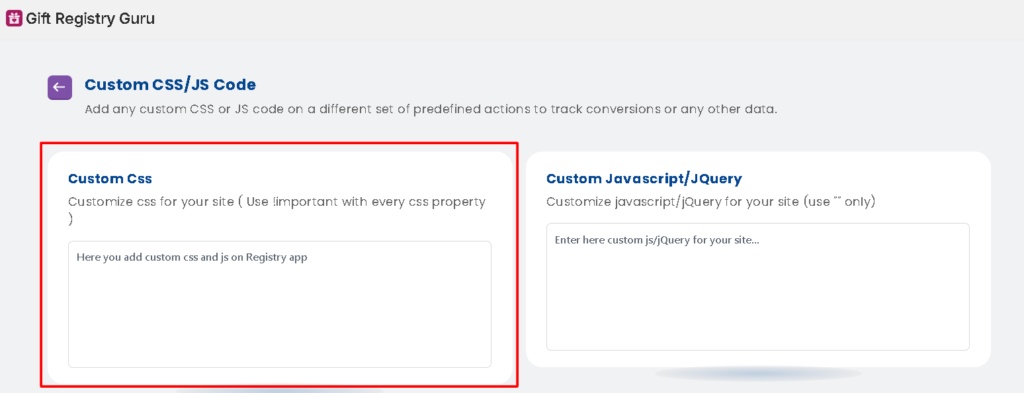
The Custom CSS field lets you add any custom CSS styles to override or extend the default appearance of the Gift Registry Guru app on your storefront.
Important: Always use !important with every CSS property you add here to ensure your custom styles take priority over the app’s default styles.
Example use cases:
- Changing the font size or color of registry page text
- Adjusting the spacing or layout of registry product cards
- Adding custom hover effects to the Add to Registry button
- Hiding specific elements on the registry page
css
/* Example: Change the Add to Registry button font size */
.registry-button {
  font-size: 16px !important;
  border-radius: 8px !important;
}
Custom JavaScript / jQuery #
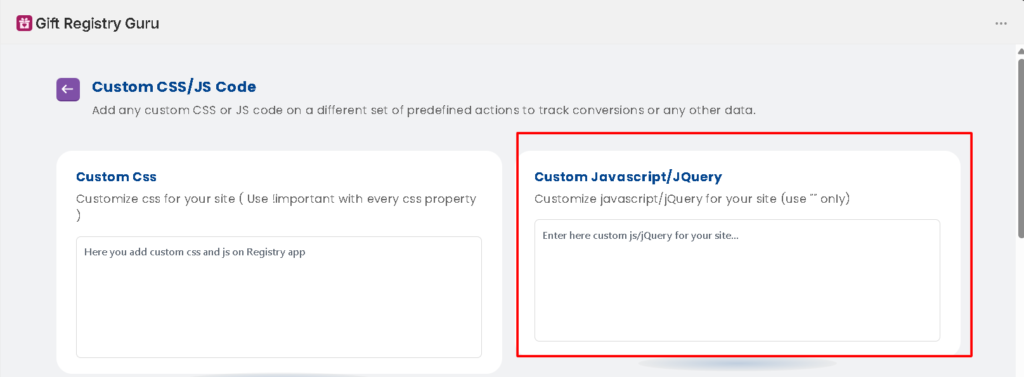
The Custom JavaScript/jQuery field lets you add global JavaScript or jQuery code that runs on your registry app pages.
Example use cases:
- Running a custom analytics event when the registry page loads
- Integrating a third-party script with the registry app
- Modifying DOM elements on the registry page via JavaScript
javascript
// Example: Log a message when the registry page loads
$(function() {
  console.log("Gift Registry page loaded");
});
Custom JS/jQuery After Add Item #
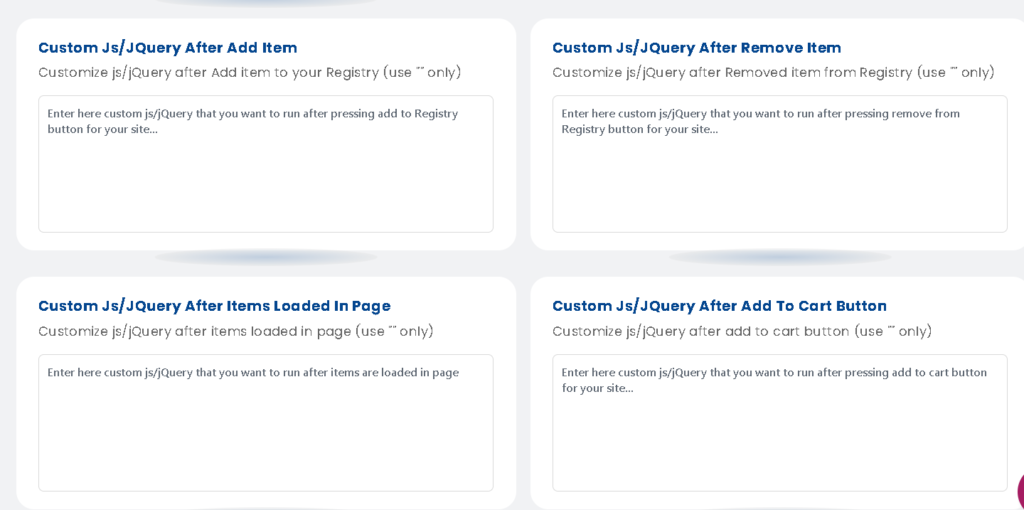
This field lets you run custom JavaScript or jQuery immediately after a shopper clicks the Add to Registry button and an item is successfully added to their registry.
Example use cases:
- Firing a custom conversion tracking event when an item is added to the registry
- Updating a third-party analytics tool (e.g., Google Analytics, Klaviyo) when a registry addition occurs
- Showing a custom popup or message after the item is added
Custom JS/jQuery After Remove Item #
This field lets you run custom JavaScript or jQuery immediately after a shopper removes an item from their registry.
Example use cases:
- Tracking registry item removal events in your analytics platform
- Triggering a custom notification or confirmation when an item is removed
- Syncing registry changes with an external system
Custom JS/jQuery After Items Loaded in Page #
This field lets you run custom JavaScript or jQuery after all registry items have finished loading on the registry page. Use ” “only.
Example use cases:
- Initializing a third-party component (e.g., a custom slider or tooltip) after registry items render
- Running DOM manipulation after the registry product grid is fully loaded
- Triggering a page-view tracking event once the registry content is visible
Custom JS/jQuery After Add to Cart Button #
This field lets you run custom JavaScript or jQuery immediately after a shopper clicks the Add to Cart button on the registry page (the Move to Cart button used by gifters).
Example use cases:
- Firing an add-to-cart conversion event in Google Analytics or Meta Pixel
- Tracking gifter behavior when they add a registry item to their cart
- Triggering a custom upsell or cross-sell popup after the cart action
Important Notes Before You Start #
- Use
!importantfor all CSS — Without!important, your custom CSS may be overridden by the app’s default styles. - Use double quotes
" "for all strings — When writing strings inside any JavaScript or jQuery field, always use double quotes (") instead of single quotes (') or backticks (`). Using single quotes or backticks may cause the script to fail. - Test on a duplicate theme first — Before applying custom CSS or JS to your live store, test it on a duplicate theme to make sure it doesn’t break any existing functionality. See How to Activate Gift Registry Guru on an Unpublished or Draft Shopify Theme for guidance.
- Save your changes — Always click Save in the top right corner after adding or editing any custom code.
- Backup your code — Keep a local copy of any custom CSS or JS you add. If you ever need to reinstall or reset the app, you’ll want to be able to restore your customizations quickly.
Frequently Asked Questions #
#
Go to Gift Registry Guru > General Settings > Custom CSS/JS Code and paste your CSS into the Custom CSS field. Remember to use !important with every CSS property.
#
Gift Registry Guru’s JavaScript fields require all string values to be written using double quotes ("). Using single quotes (') or backticks (`) may cause your script to fail or not execute correctly.
#
Yes. The event-based JS fields (After Add Item, After Remove Item, After Add to Cart) are ideal for firing custom tracking events in Google Analytics, Meta Pixel, Klaviyo, or any other analytics or marketing platform your store uses.
#
The Custom CSS field in Gift Registry Guru applies specifically to the registry app’s elements and pages. However, if your CSS selectors are too broad, they could unintentionally affect other parts of your store. Always use specific class names and test carefully.
#
The Custom CSS field is designed for users with some CSS experience. If you’re not familiar with CSS, we recommend reaching out to our support team or a Shopify developer for help — incorrectly written CSS can affect how your registry pages display.
#
There is no strict character limit, but we recommend keeping your custom code concise and well-commented for easier maintenance. Large amounts of unoptimized CSS or JS may impact your registry page load speed.


