
Quick Answer #
To set up gift registry sharing, go to Gift Registry Guru > General Settings > Share Registry Settings. From here you can enable sharing via social channels (Facebook, WhatsApp, Instagram, Twitter, LinkedIn, Telegram, FB Messenger), customize the share email subject and body using dynamic placeholder tokens, and send a test email to preview how it looks. On the Free Plan, sharing is available via URL only.
Once a customer has created their gift registry, the next step is sharing it with friends and family so they can browse and buy gifts. Gift Registry Guru makes this easy with a built-in share popup that supports multiple sharing channels — from a direct email with a personal message to one-click sharing on social media and messaging apps.
How to Open Share Registry Settings #
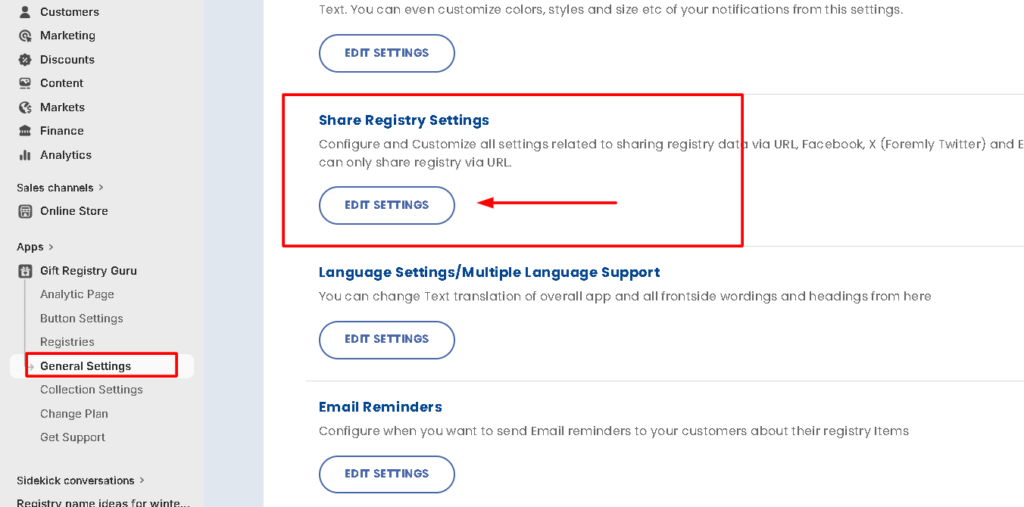
- Log in to your Shopify Admin.
- In the left-hand navigation, go to Apps > Gift Registry Guru.
- Click on General Settings in the Gift Registry Guru left-hand menu.
- Navigate to the Share Registry Settings section.
Share Entire Registry — Enable Social Sharing Channels #
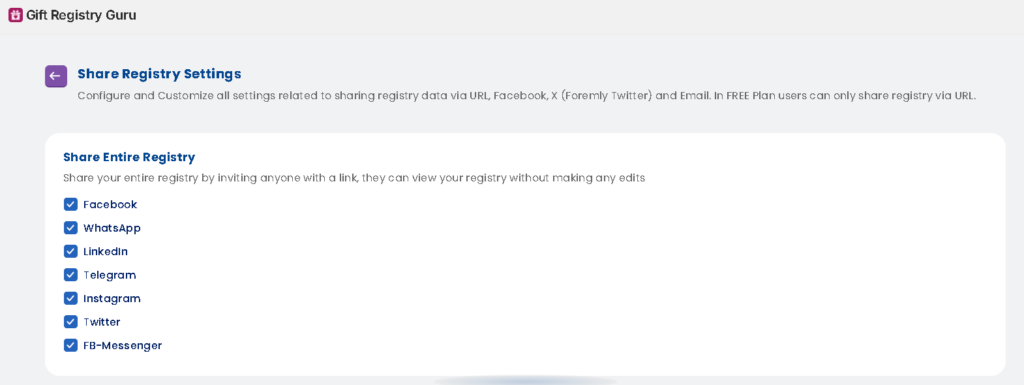
The Share Entire Registry section lets you control which sharing channels are available to registry creators when they want to share their registry with friends and family. When a channel is enabled, shoppers can share their registry link directly to that platform in one click.
The following social sharing channels can be enabled or disabled individually:
- ✅ Telegram
- ✅ Twitter (X)
- ✅ FB Messenger
All channels are enabled by default. Simply uncheck any channel you don’t want to offer to your customers.
Note: On the Free Plan, registry sharing is available via URL only. Social channel sharing and email sharing require a paid plan.
Sharing via Email #
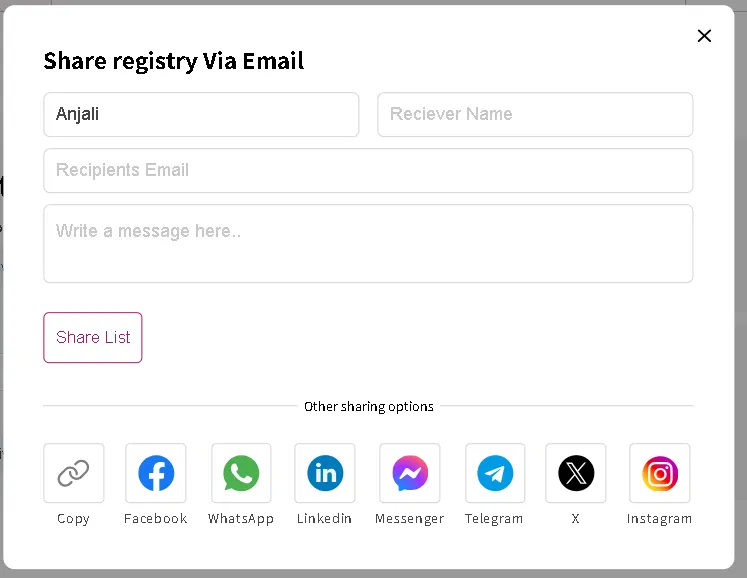
The share popup allows customers to send their registry directly to a specific person via email with a personal message.
To share via email, the customer fills in the following fields in the Share Registry Via Email popup:
- Sender Name — The customer’s name (pre-filled automatically if logged in)
- Receiver Name — The name of the friend or family member they are sharing with
- Recipients Email — The email address of the recipient
- Write a message here — An optional personal message to include in the email
Once all fields are filled in, click Share List to send the email.
Sharing via Copy Link #
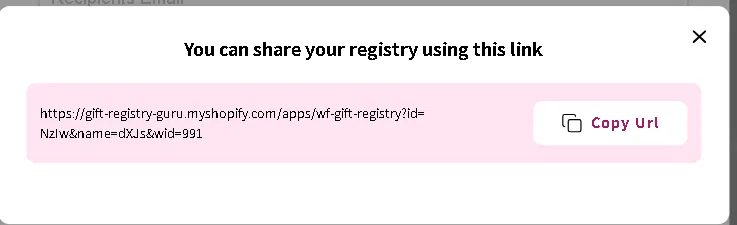
If the customer prefers to share their registry link manually — for example, by pasting it into a text message, group chat, or social media bio — they can copy the direct registry URL.
In the share popup, click Copy (the link icon) to copy the unique registry URL to the clipboard. A confirmation popup will appear showing the full registry link with a Copy URL button.
Customizing the Share Email Template #
The email editor allows you to customize the subject line and body of the share email. You can format the email using the built-in rich text toolbar (bold, italic, underline, lists, alignment, links, emoji, and more).
Email Subject
Set the subject line of the share email. The default subject is:
Registry from {registry_share_email_sender_name}You can update this to match your store’s tone — for example:
{registry_share_email_sender_name} shared their Gift Registry with you!Email Body
Customize the full body of the share email. The default message reads:
Hello {registry_share_email_reciever_name}!
{registry_share_email_sender_name} filled out this registry and asked us to forward it to you. You can simply click on the button below to see it at our online store and easily make your purchase.
Message for you:
{registry_share_email_customer_message}
You can edit this text, reformat it, and add your own brand messaging while keeping the placeholder tokens in place so the email personalizes correctly for each recipient.
Available Email Placeholder Tokens #
Placeholder tokens are dynamic variables that are automatically replaced with real data when the share email is sent. Use them anywhere in the email subject or body.
| Token | What it displays |
|---|---|
{registry_share_email_sender_name} | The name of the registry creator (the person sharing the registry) |
{registry_share_email_reciever_name} | The name of the recipient (the friend or family member receiving the email) |
{registry_share_email_customer_message} | The personal message the registry creator wrote to the recipient |
{registry_share_email_registry_url} | The direct link to the registry page for the recipient to view and shop |
{registry_share_email_static_data} | A full table of the registry items, shown inline in the email body |
👉 We recommend always including {registry_share_email_registry_url} or {registry_share_email_static_data} in the email body so recipients have a clear way to view and shop the registry.
What the Recipient Sees #
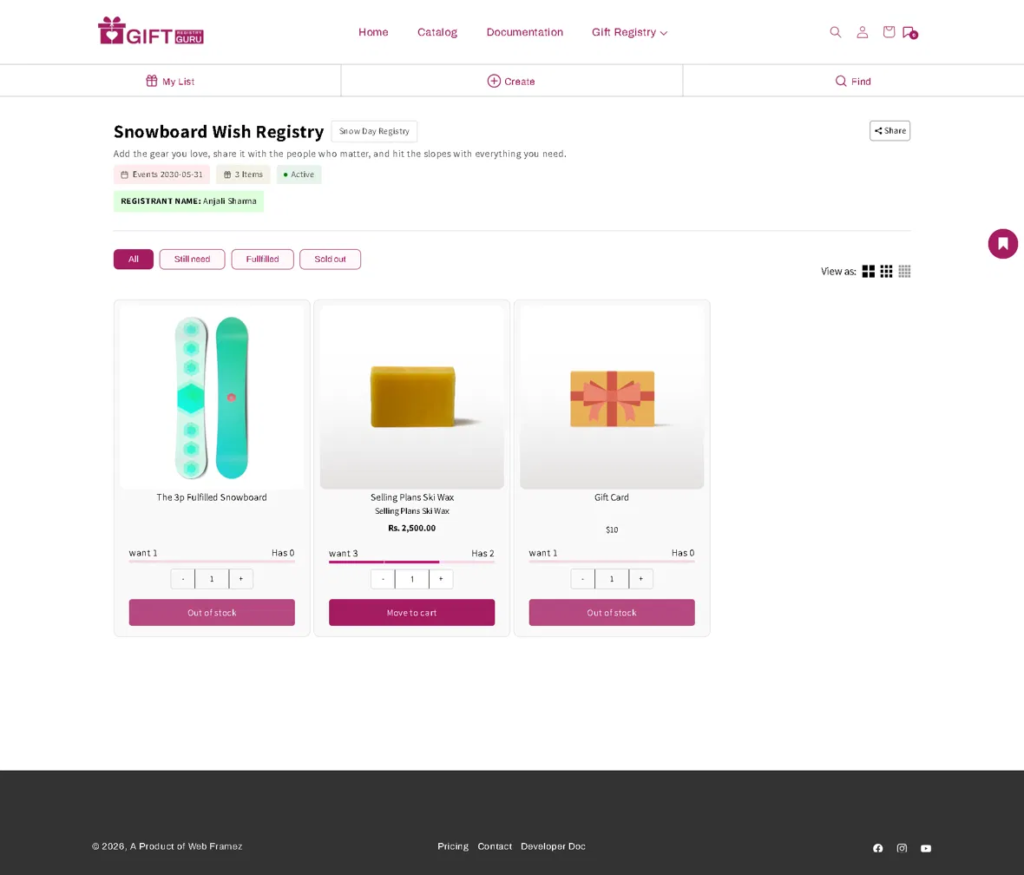
When a recipient receives a shared registry — whether via email, a copied link, or a social media share — they are taken directly to the registry’s gifter view page. From here they can:
- Browse all the products on the registry
- See which items are still needed (Still Need), already fulfilled (Fulfilled), or sold out (Sold Out)
- Adjust the quantity of a gift they want to purchase
- Click Move to Cart to add a registry item to their cart and proceed to checkout
How to Send a Test Email #
Before going live, use the Send Test Email button to preview exactly how the share email looks in an inbox with your current subject and body settings.
- Customize your email subject and body as needed.
- Click the Send Test Email button (top right of the Share Registry via Email section).
- Check the inbox of the email address associated with your store for the test email.
- Review the formatting and placeholder token output, then make any final adjustments.
- Click Save to apply your settings.
Frequently Asked Questions #
#
Yes. When WhatsApp is enabled in the Share Entire Registry section, a WhatsApp share button appears on the registry page. Registry creators can tap it to share their registry link directly via WhatsApp — on both desktop and mobile.
#
On the Free Plan, registry sharing is available via URL only. To enable email sharing and social channel sharing (Facebook, WhatsApp, Instagram, etc.), you need to upgrade to a paid plan.
#
Yes. Use the email editor in the Share Registry (Via Email, Facebook & X) section to customize both the subject line and email body. You can use placeholder tokens to personalize the message automatically for each sender and recipient.
#
This token inserts a table of all the registry items directly into the email body, so the recipient can see the products without having to click through to the store. It’s useful for recipients who prefer to browse the list in their inbox before visiting your store.
#
Yes. In the Share Entire Registry section, simply uncheck any channel you don’t want to offer. The remaining checked channels will continue to appear as sharing options on the registry page.
#
Use the Send Test Email button to send yourself a preview of the current email template. This lets you check formatting, token output, and overall appearance before your customers start sharing their registries.


